
FALCON GUIDE
Subtitles and SCTE
Manage SRT sidecar files for videos and configure optional SCTE markers on production elements. Subtitle file management and verified caption output are separate workflows.
Manage subtitle files
- Open the video in Media Manager, or open Subtitles on a Play video.
- Check the selected language and existing text before replacing a file.
- Use UTF-8 SRT with ordered, non-overlapping cues. The supported upload limit is 2 MiB in the documented integration.
- Confirm any replacement or deletion. These files are shared wherever the same video is used.
Language files use the video's basename, for example clip.srt, clip.da.srt and clip.en.srt. Recheck the editor if another user has changed the file. Managing a sidecar does not by itself enable clip-synchronised CEA caption output.
Configure SCTE
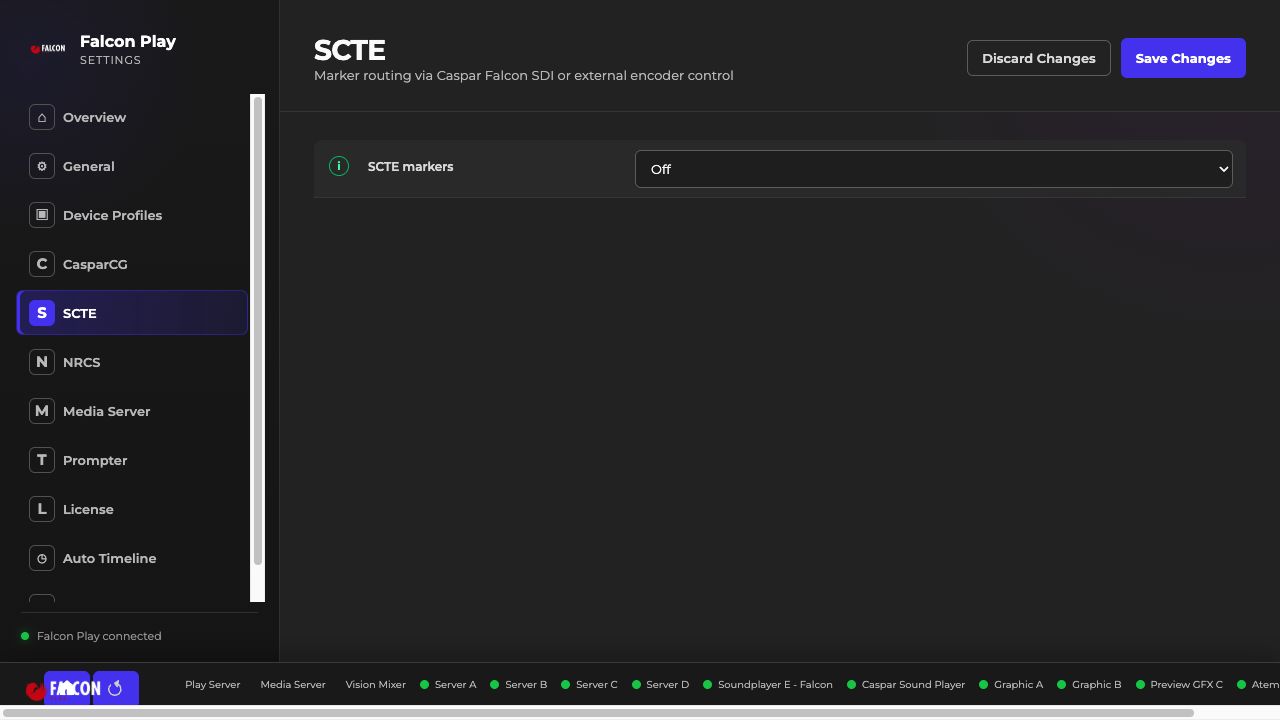
Open Settings → SCTE and choose Off, External device control — encoder via IP, or Caspar Falcon — SCTE-104 via SDI. Destinations and supported commands depend on the installed build and receiver.
With SCTE enabled, use an element's SCTE or Subtitles & SCTE tab. Explicitly enable each marker and choose OUT, IN or CANCEL where supported, its trigger and any offset. A BREAK does not send a marker unless commands have been attached and enabled.
Verify delivery
The SCTE badge indicates configuration, not delivery. Trigger offsets describe send time, and receiver pre-roll still applies. Saving or previewing an element does not send a marker. Inspect uncertain receiver replies rather than blindly retrying them.
Troubleshooting
Check global enablement, the element's enabled commands, whether it is a main item or subitem, destination support and receiver logs. Verify caption and splice output on the actual encoder and signal path before a production.