
FALCON GUIDE
Custom Controls
Build a reusable control page with buttons, headings and links for your Falcon Play installation. Open Custom Controls from the dashboard.
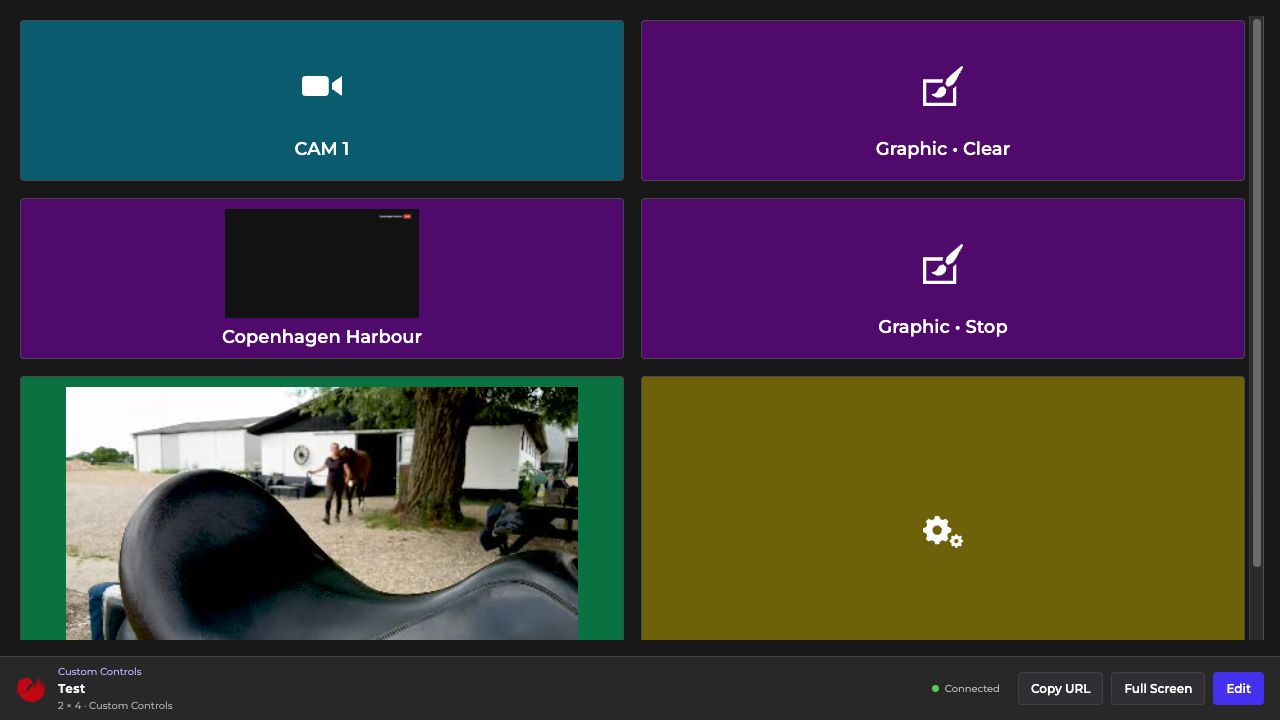
Before you start
Use a rehearsal setup while designing and testing a panel. Operational buttons can control real equipment. The available actions depend on the installed Play version and configuration.
Build a page
- Select New page and enter a recognisable name.
- Choose the grid's rows, columns, spacing and background.
- Select an empty cell to add a Control button, Text / section heading or Link button.
- Configure each button's target, appearance and size in the sidebar. Keep a clear distinction between preparation and on-air actions.
- Use Done to publish the draft and enter operating mode.
Operate and share
Use Copy URL to open the published page on another device that can reach the Play server. Edit returns to the builder. Other devices continue using the published layout until you select Done. Full Screen fits the operating view to the display.
A button shows SENDING… while its command is pending. Wait for the result instead of pressing repeatedly. If live state is unavailable, operational buttons pause until the connection recovers.
Troubleshooting
- Invalid moves or overlaps: check tile size and grid dimensions.
- Conflicting save: retain your draft, coordinate with the other editor and review the saved version before replacing it.
- Missing target or image: check the current Play object and whether a thumbnail exists.
- Unexpected device result: inspect the real output. A browser indication alone does not verify hardware execution.