FALCON GUIDE
DVE with video
DVE + Video combines a configured mixer layout with one attached clip. It uses the existing A/B playout outputs, so each output must have its own connection and mixer input mapping.
Before you start
This workflow depends on the installed build, mixer driver and configured layout. Commission it on the intended hardware before using it on air. It supports one attached video per layout; caption consumers are outside this workflow.
Configure the layout
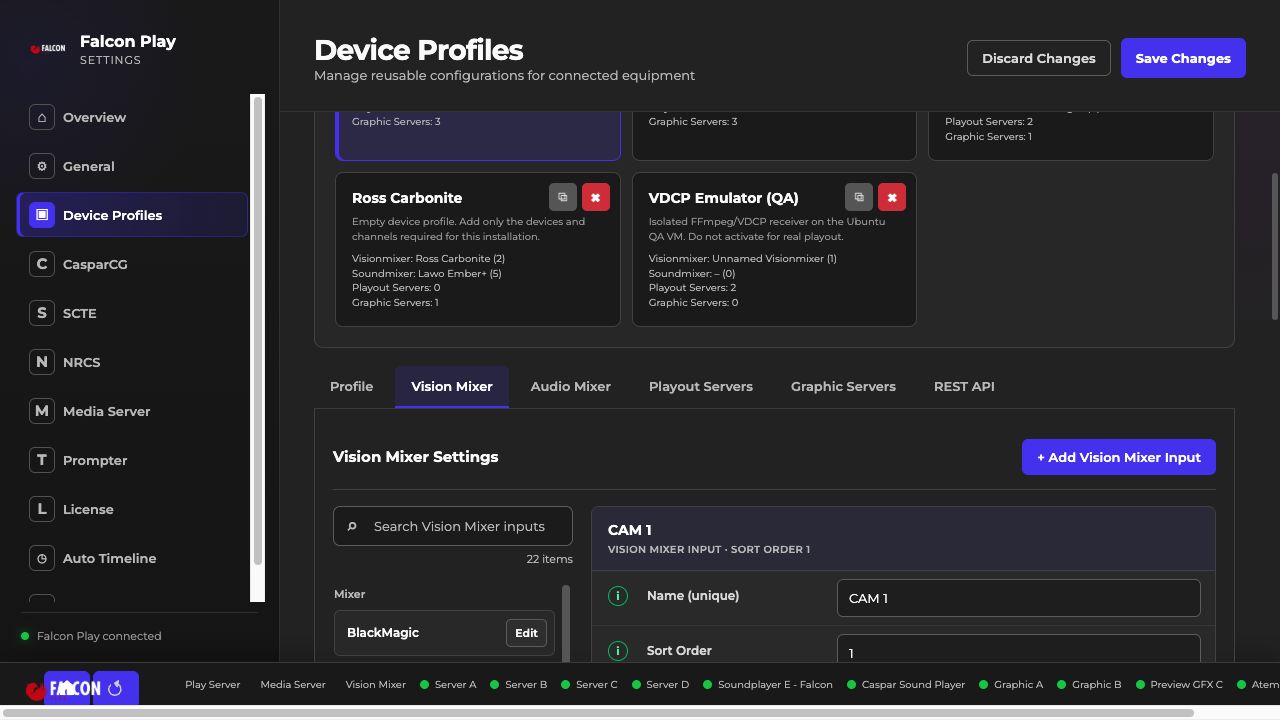
- Open Settings → Device Profiles → Vision Mixer.
- Configure an input as DVE + Video.
- Prepare the actual DVE or SuperSource layout on the mixer.
- Use A/B Video Playout for exactly one key/box slot and ordinary sources for the fixed slots.
- Check the A/B outputs and their Vision Mixer Input mappings under Playout Servers.
- Save and test with rehearsal media.
Choose and take a clip
Add the configured input to a rundown and choose its clip in the Video field, or use Select mode to choose from the library. Selection itself does not start playback. CUE prepares an available A/B output; TAKE starts the video and takes the layout.
A reserved or visibly active output cannot be reused for a different clip. If no output is available or a command times out, inspect the actual output before retrying. Explicitly stopping the attached video also stops that shared physical output.
Troubleshooting
- Wrong composition: check key/box order, ME and fixed sources on the mixer.
- No free output: inspect A/B reservations and stop an output only when it is safe.
- Unexpected audio or transition: review the profile, macros and measured timing on the real equipment.